Tampilkan postingan dengan label Excel. Tampilkan semua postingan

How to Change Rename, Color, and Font in Excel Tables

If you already have a table or have succeeded in creating a table in Microsoft Excel, then on this page, you will learn how to edit the table in Microsoft Excel. You can change the appearance of the table in Microsoft Excel by renaming it, selecting colors at columns and rows, and changing the font size of the letters. For more information, please read the short tutorial below. let's get started ...... :)


 How to Rename a Table in Microsoft Excel

1. You just click on the table area of Microsoft Excel. Then we will automatically be taken to the Design menu tab.

2. Right in the Properties section, in the Table Name column: You rename the table according to the contents of the table.

Basic Knowladges 1-20621

It is very easy not to rename the table in Microsoft Excel.

Now, for another alternative, you can use another method by opening at Formulas menu tab and then opening at Define Name dropdown menu.

Basic Knowladges 2-20621

Basic Knowladges 3-20621

After that, in the Name section, rename the Excel table as you wish. In-Scope section, select the workbook and then click OK.


=========================================================================

How to Change Table Font Size in Microsoft Excel

1. You select the text or text that you want to increase or decrease the font size.

2. Here I am trying to change the font size of the table header. You go to the Home menu tab, then select Font and scroll down to select the desired font size (20).

3. If you want to make the letters bold, you can select the Bold icon (B) and for italics, you can use Italic (I) and Underscore (U) for underlined text.


=========================================================================

How to Color an Excel Table in Microsoft Excel

1. After you finish creating the table, you select which column or row you want to add or change the color.

2. Then you open the dropdown menu and use a paint bucket to fill in the color icon.

3. Then we will automatically be faced with many color choices, such as yellow, red, green, blue, orange, and others. Here, I chose Green as the table header background color.


4. As a result, the table's background color is not as white as it used to be.

You can also change the color of the letters on the table by opening the Font Color dropdown menu.


Thank you everyone for visiting my blog and waiting for the next update. Bye Byeeeeee... :) :) :)
Share:

Creating Stylish Excel Tables

Change the appearance of the table style to be cooler and more stylish with the combination of the Format As Table feature and the Borders feature for a more professional blend of table styles, especially for those of you who want to present in public.

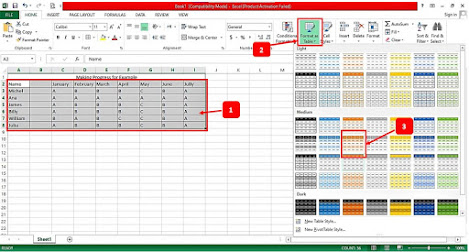
  1. As before, we first select the data we want to enter into the table.
  2. After that, you open the Format As Table dropdown menu, then select a style or table style according to your taste. Here, I choose Gold, Table Style Medium 12.
    Image 1

  3. On the Format As Table pop-up menu, check the My table has headers option. This option instructs Excel to create a header based on the format of our data, so the result is not a column 1,2,3, and so on.
  4. Don't forget to click OK to confirm it.

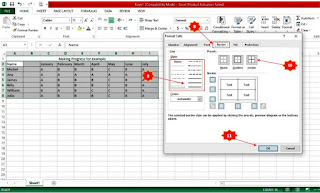
  5. To make the table better, we need to edit or edit it. Please select all of them and open the Bottom Borders dropdown menu, then select More Borders.

  6. On the Format Cells pop-up menu, go to the Border tab, then select the type of line, such as dashed, solid, double, and others.

  7. If you have entered the Presets section, click on the two boxes, namely Outline and Inside, so that all the lines on the table can change their style.
  8. Confirm the setting by pressing the OK button.

  9. The result is very satisfying. The Excel table looks neater and easier to read because there is a filter function. 👍

Thank you everyone for visiting my blog and waiting for the next update. Bye Byeeeeee... :) :) :)
Share:

How to Make a Colored Table in Excel Automatically

        Tables are often used to group important data, for example, for a recap of sales of goods at the end of the month. The table format, which only consists of rows and columns, of course, makes it easier for us to read a report. In this regard, this page will share tips on how to easily create tables in Microsoft Excel and is very suitable for beginners or those who are new to this Microsoft data processing program. Well, create a table in Excel to make it neat and look more professional. You can give color to the Excel table, especially in the header or table head. More than that, in making tables in Microsoft Excel, the problem of choosing a style must also be considered by adjusting to the existing document format.

        Apart from that, editing a table in Excel is also very practical. You can simply thicken the line or table border as you wish. Well, to maximize the creation of a table on a Microsoft Excel worksheet, it is a good idea to do it on a laptop or computer. As a result, the android phone is not ideal, and the interface is too small. Let's get right to it and show you how to make a table in Excel with Windows users.

Steps to Create a Table in Microsoft Excel

        A few tips to quickly start the process of creating a table in Excel, especially if you need it in large quantities, are by copying the Excel table. Without having to start from scratch, you just need to move the data into the Excel table.

Creating Plain Excel Tables

our first tutorial will try to create a table that is commonly used by many Microsoft Excel users, namely by bolding the lines on the table. The method is very simple and easy to follow, especially for those of you who are new to this data processing application.

1. Open the Microsoft Excel worksheet on your computer or laptop.
2. Enter all the required data when you are finished. Please select all of them with the cursor or press the Ctrl+A  keys on the keyboard.


https://www.practicalintroduction.com/2021/06/how-to-create-colored-table-in-excel.html


3. Enter the Font category, then open the Bottom Border dropdown menu, then select All Borders to create a line on the table.
4. Well, next to set the table title or header. You can select it using the cursor, then you select Merge & Center to unite rows and columns into one cell.


https://www.practicalintroduction.com/2021/06/how-to-create-colored-table-in-excel.html

5. The next step is to thicken the table lines to have a neat and attractive appearance. You open the Bottom Borders dropdown menu and select the More Borders option.


https://www.practicalintroduction.com/2021/06/how-to-create-colored-table-in-excel.html


6. Well, after the Format Cells appear, you go to the Border menu tab. In the Line Style section, select the thickest line. If you want to make it more formal, from the Presets section, you can choose Inside and Outline. 
7. Then all the lines inside and outside the table will be bolded. You can check them in the sample border-box below.

https://www.practicalintroduction.com/2021/06/how-to-create-colored-table-in-excel.html


8. Finally, when you have finished setting the line thickness on the table, You click OK to save it.


https://www.practicalintroduction.com/2021/06/how-to-create-colored-table-in-excel.html


Thank you everyone for visiting my blog and waiting for the next update. See you next time... 😊

Share:

Happy Wolrd Teacher Day

Daily Page View

Label

Adobe Acrobat Adobe Photoshop Alexa Rank Andorid Application Art Austria BUMN Beginner Belgium Blog Community Blogger Bupati Gresik CPNS/PPPK Canada Coin Market Cap Computers Cosmology Cryptocurrency Dancing Denmark Doctoral Doker Education Educational Excel Excel Table Features Film Finland French Gadget Gallery Garuda Emas Germany Google Analytics Google Form Hardware Homestay Hong Kong Ilovepdf Indrawan Vpp Interior Design Ireland Italy KKPR dan PKKPR Kampung hijau Karang Taruna Karir/Career Keyword Keywords LKPM LaTeX Linux Lowongan Kerja BUMN/SWASTA Mac Majalah Tech Material Physics Material Physics. Mechanical Engineering (ME) Microsoft 365 Microsoft Excel Microsoft Office Microsoft PowerPoint Microsoft Word NFC Nero Nero Burning 2021 Networking New Technology OSS RBA OTOMOTIF Operating Systems Optic PDF PT Aerotrans Services Indonesia (Garuda Indonesia Group) PT Astra Tol Nusantara (ASTRA Infra) PT Indomarco Prismatama (Indomaret Group) PT Indonesia Epson Industry PT Jakarta Industrial Estate Pulogadung PT Pertamina Training & Consulting (PTC) PT. Indofarma (Persero) PT. Kimia Farma Group Perizinan Berusaha Persetujuan Lingkungan Pinjaman Online Posgraduate Postgraduate PowerPoint Presentations Profil Perusahaan/Company Profil Profil-Perusahan Publisher Pyrolysis Quantum Computing Quantum Physics Quiz Renewable Energy Research SEO SWASTA Scholarship Semi conductor Semiconductor Sertifikat Halal Smartphone Spintronic Study Abroad Super Capasitor Superconductor Tata Cara Pendaftaran Surat Izin Usaha Industri (SIUI) Technology Tecnology Thailand The Best Trip & Travel Tutorial United Kingdom United Stated United States VGA card Website Windows 365 Windows Tips Word Document WordPress Zero Waste chromium tricks font iphone iphone 13 Pro iphone 13 Pro Max iphone 13 Pro Max gsmarena online zodiak